Video overview
(Note: The following video is in German)
Requirements
Hardware
Disk space
Linux
- Download size
- 7 GB
- Unarchived size
- 10 GB
- Additional space for installation
- 10 GB
Windows
- Download size
- 2.5 GB
- Unarchived size
- 4 GB
- Additional space for installation
- 4 GB
Additional space
- Embedding model
- 4.5 GB
- LLM (Google Gemma 3 27b)
- 17 GB
- Storage for databases and temporary files
- according to the size of your data
Linux
- 64-bit (kernel 3.2+, glibc 2.17+)
- You might need to install the following libraries from your distribution’s package manager:
libgl1 libmagic1. On a Debian or Ubuntu system, you can do that usingsudo apt install libgl1 libmagic1.
Windows
- 64-bit (Windows 10+, Windows Server 2016+)
- You might need to install https://learn.microsoft.com/en-us/cpp/windows/latest-supported-vc-redist
Troubleshooting: Path Length Error If you encounter Could not install packages due to an OSError: [WinError 206] The filename or extension is too long (or Der Dateiname oder die Erweiterung ist zu lang), you need to enable long path support in Windows:
- Press
Win + R, typeregedit, and press Enter. - Navigate to
HKEY_LOCAL_MACHINE\SYSTEM\CurrentControlSet\Control\FileSystem. - Find the
LongPathsEnabledvalue and double-click it. (If it doesn’t exist: right-click an empty space, select New > DWORD (32-bit) Value, and name itLongPathsEnabled). - Change the Value data to
1and click OK.
Obtaining, installation and starting
Download the release for your platform at https://learn2rag.de/downloads. Extract the archive. You will need to keep this directory to run Learn2RAG.
unzip learn2rag-linux.zip
cd learn2rag-linux
Run the file named start either with a right mouse click and “Execute” or in a terminal.
./start
On the first run, Python environment and dependencies would be prepared, so it can take some time. Expected first start time: | Powerful server | 10 min |
Configuration
The configuration of the Learn2RAG software is designed as a web interface and can be opened via a browser. This should happen automatically after executing the start command. If this does not happen, you will find the URL in the output of the start command, which you can open with your browser to access the configuration user interface.

The interface of the configurator is divided into 3 areas: Language models, Data sources, and Pipelines. Additionally, when starting for the first time, a wizard is displayed at the top to assist in creating a first RAG pipeline. These areas are detailed below.
Learn2RAG includes English and German interface localization. The localization is chosen according to your web browser’s settings. Refer to your web browser’s documentation for the details.
Interface language
Learn2RAG includes English and German interface localization. The localization is chosen according to your web browser’s settings. Refer to your web browser’s documentation for the details.
First run wizard
On a first run before you created any configurations, a first run wizard is displayed which can be used to create a minimally working configuration. You can follow the steps to set up a basic example configuration.
Language models
Downloadable language models
Learn2RAG can download and deploy a language model. That is done with Ollama which is automatically started.
A short list of suggested language models to download is provided for a quick start. However, you can also select any other model supported by Ollama. An overview of available models can be found at: https://ollama.com/library.
🛈 Please note that some models can have high requirements for the provided hardware.
External language models
An external (local or remote) language model can be used if it’s available with OpenAI or Ollama compatible API. You would need an API URL and (if required) an access token.
OpenAI’s ChatGPT
- API type
- ChatOpenAI
- API URL
- (leave empty)
- Access token
<your token>- Language model
gpt-4oor other
Downloadable language models
Learn2RAG can download and deploy a language model. That is done with Ollama which is automatically started. An overview of available models: https://ollama.com/library.
Air-gapped / Offline Environments
If your deployment machine has no internet access, you cannot download models via the built-in wizard. You must manually transfer Ollama and the model files. See the Offline Ollama Setup Guide for step-by-step instructions.
Suggested language models
A short list of suggested language models to download is provided for a quick start.
Data sources
In this submenu, existing data sources are listed and new ones can be configured. A data source basically has a name that you can freely choose in order to select the source later.
| Data source | Supported | User Rights Supported |
|---|---|---|
| File system | Yes | No |
| Webpages | Yes | No |
| Microsoft | Yes | No |
| Drupal | Yes | Yes |
More details about the supported data sources can be found here
In this section the data sources are only configured. They are actually scanned or retrieved at a later stage, after a pipeline is configured and the import task is run.
Pipelines
On this page, you can configure, start, and stop one or more RAG pipelines.
Minimal configuration
To create a pipeline, you need to specify the storage directory where the system would save all related data, and choose which configured language models and data sources should be used.
Note: By default, the pipeline storage path is located in the user data directory of the user running Learn2RAG (see Data storage locations). However, any accessible path on your system can be used.
Optional configuration
Ports
You can specify which ports should pipeline components use. If skipped, the system would try to find an available port automatically.
Importing data
You can set or unset an option to run the data import as soon as you configure the pipeline.
Usage
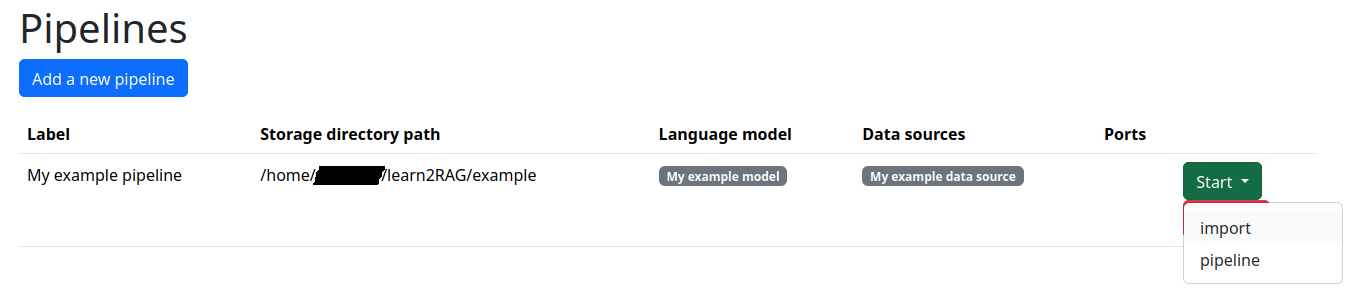
After at least one language model, data source, and pipeline are configured, you can now control this pipeline. The data import should be started first, otherwise the pipeline will have no data to work with.
Importing data
The import task would process all selected data sources. After starting, you would need to wait until it is done.
Note: Importing a large volume of data can take a significant amount of time.
Using the system
The pipeline task would start the necessary components. After starting, use the “Open” button to open the user interface.
Updating
- Run the file named
uninstall. - Download the new version of the Learn2RAG software.
- Install this version as described above.
Uninstallation
Run the file named uninstall. That would remove automatically created application files, but leave your configuration data and downloaded models in place.
Data storage locations
Linux
$XDG_DATA_HOME/pyapp/(~/.local/share/pyapp/)- Application data
$XDG_DATA_HOME/Learn2RAG/(~/.local/share/Learn2RAG/)- User data
Windows
%LOCALAPPDATA%\pyapp\data\- Application data
%LOCALAPPDATA%\Learn2RAG\- User data
Advanced configuration
You can create a config.yml file next to the start file.
An example with all supported options:
flask:
  # Application data path for user data, downloads (LLMs)
  # Also used as a default storage path
  instance_path: '/data/learn2rag'
UI:
  # Make administration interface available for others on any network (or specify yours)
  host: '0.0.0.0'
  port: 9000
SIMPLE_AUTH:
  # Credentials for the administrator interface
  username: admin
  password: 123
CHAT:
  # Make chat interface available for others on any network (or specify yours)
  host: '0.0.0.0'
  # Credentials for the user interface
  username: user
  password: 456
TLS:
  KEYFILE: '/absolute/path/key.pem'
  CERTFILE: '/absolute/path/fullchain.pem'
logging:
  # Display and save detailed debug logs
  debug: true
# Ports which would be preferred by default for additional services
PREFERRED_PORTS:
  - 5001
  - 5002
  - 5003
SUGGESTED_MODELS:
  local-chat:
    label: Local LLM configuration
    description: Put more information there.
    config:
      api: ChatOpenAI
      url: https://example.com/api
      model: gemma-3-27b-it
      token: xxx
Troubleshooting
Remove application and user data storage
<#data-storage-locations>